




Runway(Runway ML) AI Video Generator
Runway is a leading AI video generation model family, designed for text-to-video, image-to-video, and advanced motion-aware content creation. On Zuss, you can use Runway models to generate videos from text prompts or images, refine motion, and explore different creative styles across multiple generations.





Evolution of Runway Model
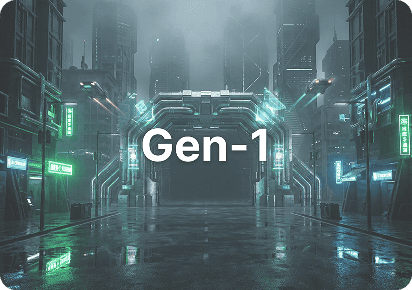
Image-to-Video and Video Style Transfer
Runway Gen-1 represents the earliest stage of Runway’s AI video generation pipeline, focusing primarily on image-to-video and video-to-video transformation.
Rather than generating videos from scratch, Gen-1 applies AI-driven style transfer to existing images or footage while preserving the original motion structure.
This generation laid the foundation for AI video editing, enabling creators to experiment with artistic styles, visual reinterpretation, and abstract motion effects.
Core Capabilities of Runway AI Models
Stylization and Visual Transformation
Runway AI allows creators to apply visual styles and artistic transformations to videos with minimal prompting. Built-in stylization capabilities make it easy to achieve cinematic or creative looks while preserving motion consistency.
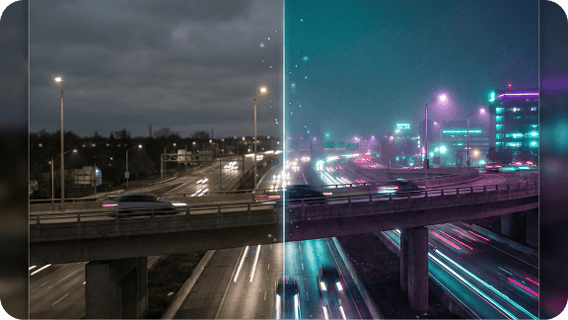
Storyboard to Video Generation
Runway enables the transformation of images, sketches, or visual references into animated video sequences. This workflow helps creators quickly turn storyboards or concepts into moving scenes during early ideation stages.
_1773392662133.png)
Advanced Motion and Camera Control
Runway provides enhanced control over motion dynamics and camera-like movement in AI-generated videos. Creators can simulate pans, zooms, and cinematic transitions to produce more dynamic and professional visuals.
_1773392697325.png)
Progressive Quality Across Model Generations
Across different generations, Runway models progressively improve visual quality, motion stability, and realism. Users can select the most suitable version based on creative needs and output requirements.
_1773392721841.png)
How to Use Runway ML on Zuss AI
Step 1
Choose the generation workflow that fits your creative goal, such as text-to-video or image-to-video, to start your AI video generation process.
Step 2
Enter a clear text prompt or upload an image as a visual reference. Zuss uses your input to guide the structure, style, and motion of the generated video.
Step 3
Adjust available settings such as visual style, motion behavior, or duration, then generate your video. You can iterate and refine results until the output matches your creative intent.